Exception Dates
Exclude specific dates from your recurrence pattern without changing the pattern itself.
What Are Exception Dates?
Exception dates are specific dates that should be skipped even though they match the recurrence pattern. They're perfect for:
- Holidays: Skip Christmas, New Year's, etc.
- Venue closures: Building maintenance, renovation periods
- Conflicts: Dates when another event takes priority
- Cancellations: One-time cancellations without changing the pattern
Adding Exception Dates
Quick Add
In the Recurrence Settings metabox:
- Ensure recurrence is enabled
- Find the Exception Dates section
- Click Manage Exclusions
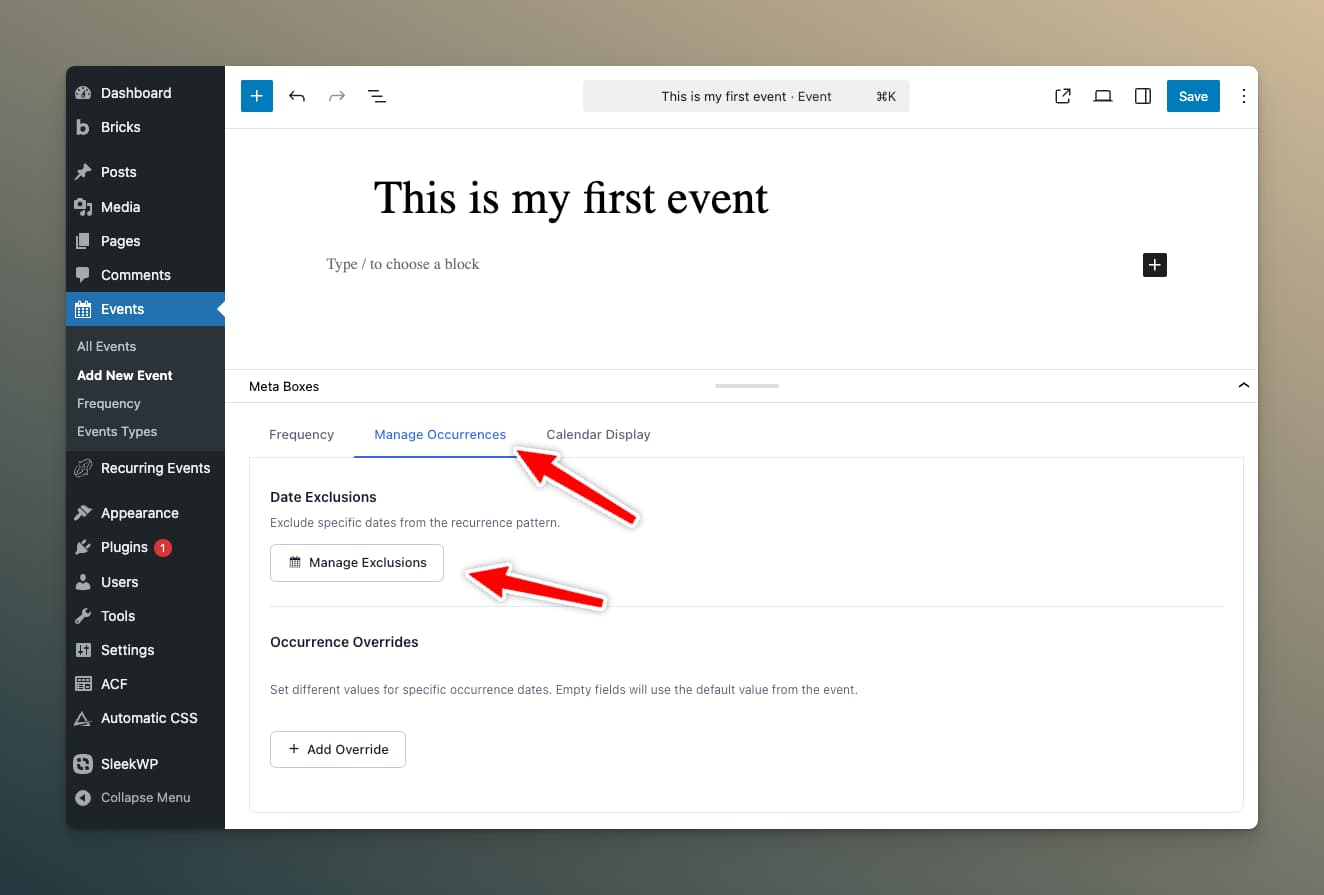
Exclusions Modal
The modal shows all calculated occurrences:

Features:
- Search: Find specific dates quickly
- Pagination: Navigate through many occurrences
- Checkboxes: Select dates to exclude
- Selected count: See how many dates are excluded
Steps to Exclude Dates
- Open the Manage Exclusions modal
- Browse or search for the date(s) to exclude
- Check the checkbox next to each date
- Click Save Changes
Viewing Excluded Dates
Excluded dates appear in the metabox with a strikethrough or badge indicating they're excluded.
Removing Exceptions
To restore an excluded date:
- Open Manage Exclusions
- Uncheck the date
- Save changes
The date will resume appearing in the recurrence.
Exception Dates vs. Pattern Changes
| Scenario | Use Exception Dates | Change Pattern |
|---|---|---|
| Skip one holiday | ✅ | ❌ |
| Event permanently moves to different day | ❌ | ✅ |
| Skip multiple specific dates | ✅ | ❌ |
| Reduce frequency permanently | ❌ | ✅ |
Technical Notes
- Exception dates are stored as an array in post meta (
_lre_exception_dates) - Maximum exceptions limited by the 375 occurrence cap
- Exceptions are checked during occurrence calculation
- Cache is cleared when exceptions change