Occurrence Overrides
Set different field values for specific occurrences without creating separate posts.
What Are Overrides?
Overrides let you customize specific occurrences while keeping the single-post approach. For example:
- Different featured image for a special occurrence
- Custom title for a holiday-themed session
- Alternate location when the usual venue is unavailable
- Special description for a particular date
Configuring Override Fields
Before using overrides, configure which fields can be overridden:
- Go to Recurring Events → Settings
- Click the Overrides tab
- Check the fields you want to allow overrides for
- Save changes
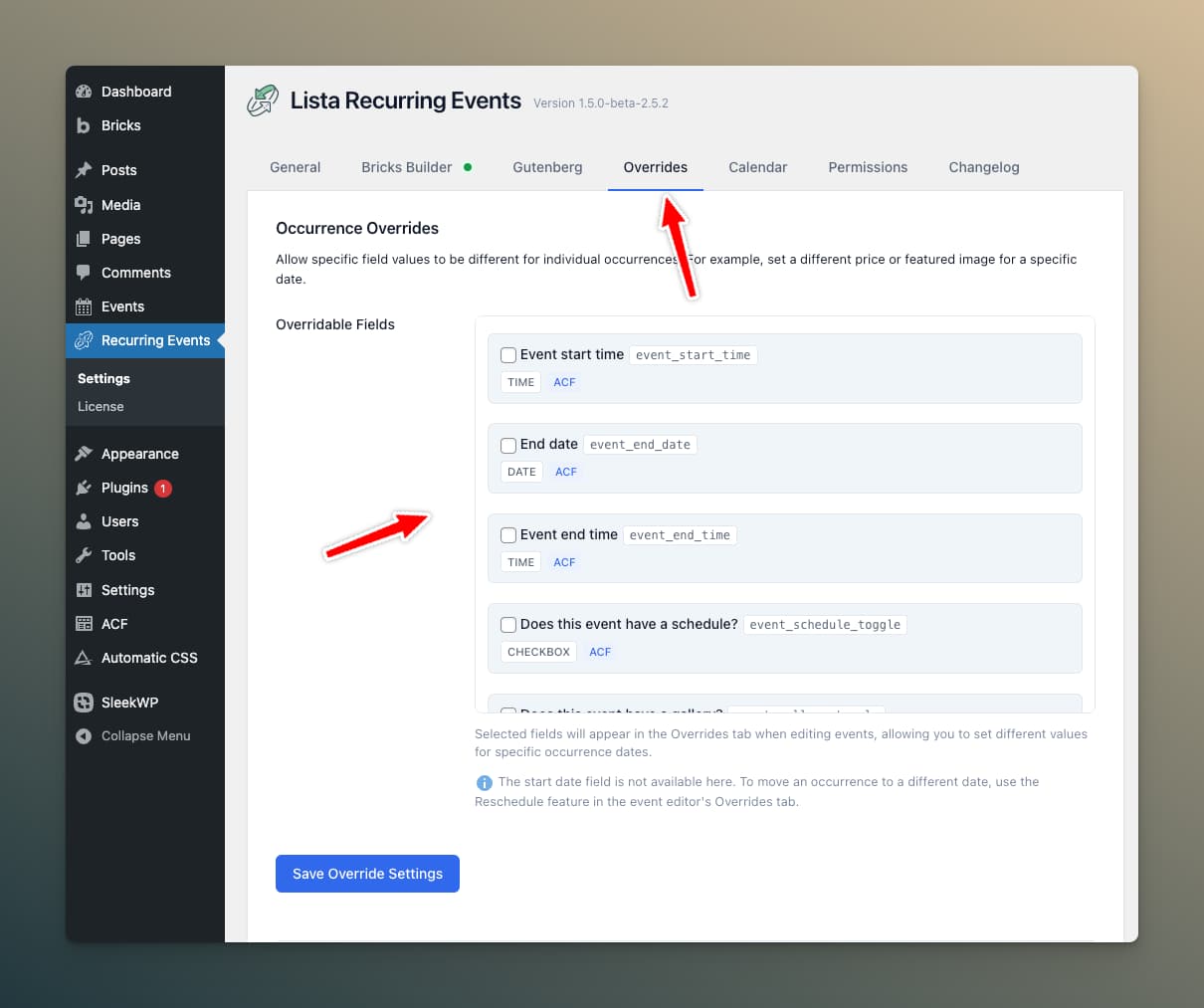
Start date, end date, start time, and end time fields are not listed in the Overrides settings — they are managed by dedicated controls in the override row (Reschedule for dates, time pickers for times).
Available Field Types
The plugin detects fields from your configured field source (ACF, JetEngine, etc.):
| Field Type | Override Support |
|---|---|
| Text | ✅ |
| Textarea | ✅ |
| Image | ✅ |
| URL | ✅ |
| Number | ✅ |
| ✅ | |
| Color | ✅ |
Adding Overrides
Access the Manage Occurrences Tab
- Edit your event post
- In the Recurrence Settings metabox, click Manage Occurrences
Add an Override
- Click Add Override
- Select the occurrence date
- Enter values for the fields you want to override
- Add more overrides as needed
- Publish/Update the event
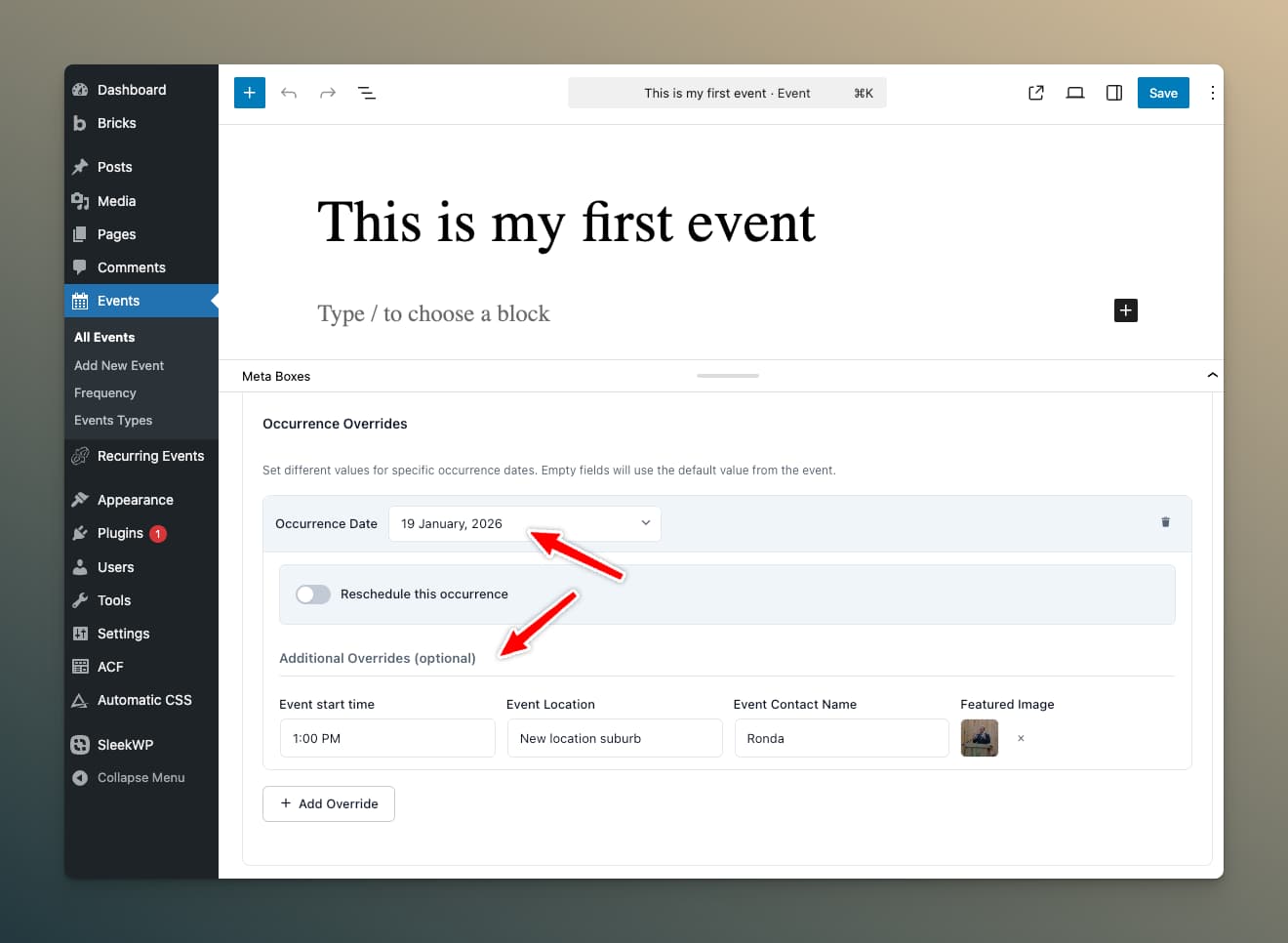
Override Row Structure
Each override row includes:
- Date selector: Choose which occurrence to override
- Start Time / End Time inputs: Change the time for this occurrence (appears automatically when a time field is configured)
- Field inputs: One for each allowed override field
- Remove button: Delete this override
Per-Occurrence Time Overrides
Override rows include dedicated Start Time and End Time inputs, allowing you to change the time of a specific occurrence without affecting the rest of the series. The time inputs appear automatically when a time field is configured in the plugin settings.
For fields that store both date and time together (such as Meta Box datetime or ACF Date Time Picker), the override UI renders both a date picker and a time picker instead of a date-only picker.
Reschedule Feature
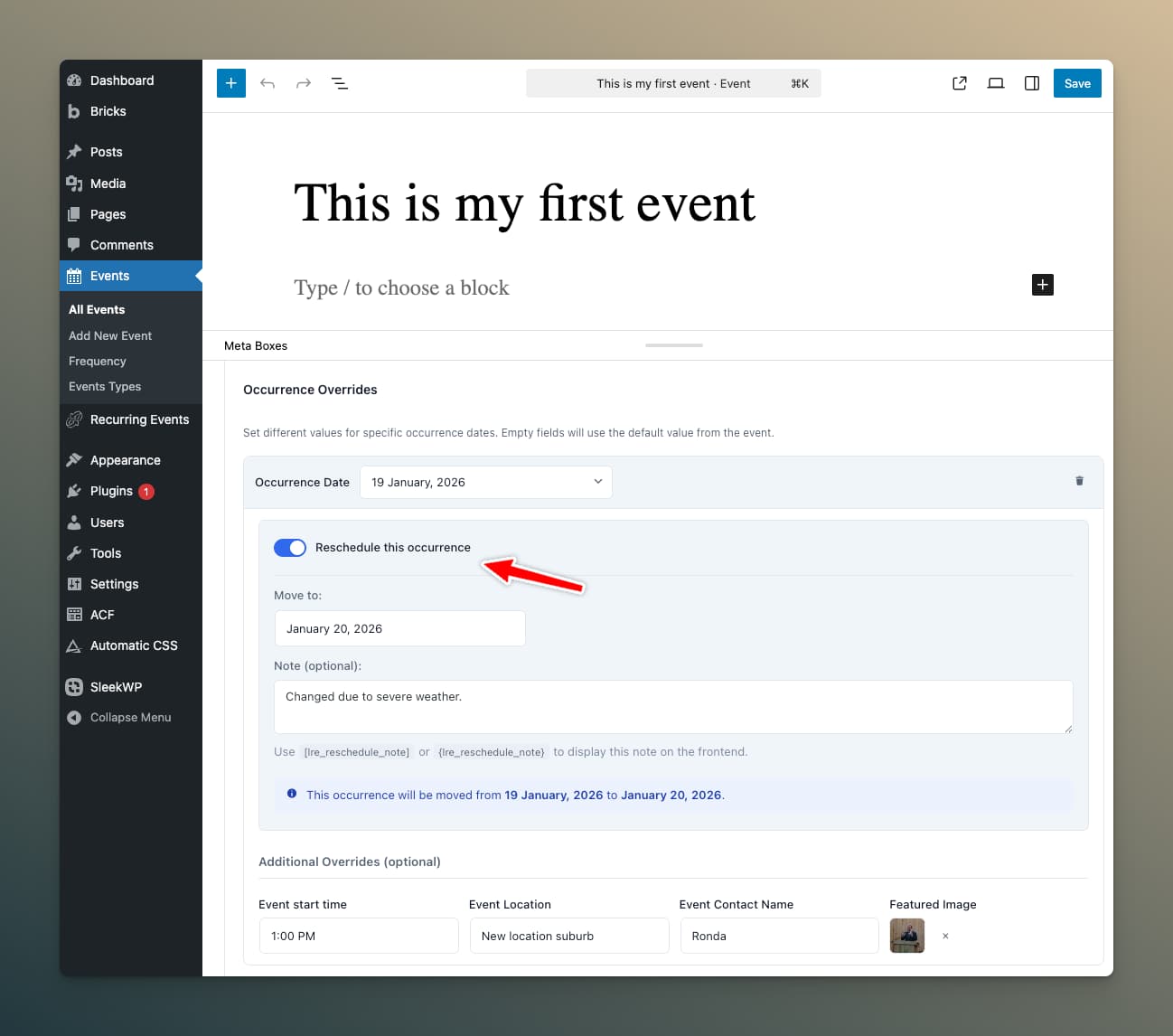
Special override type that moves an occurrence to a different date:
- Enable Reschedule toggle in an override row
- Select the new date
- Optionally add a reschedule note explaining the change
Reschedule Notes
Add a note explaining why the occurrence was rescheduled:
- "Moved due to holiday"
- "Venue unavailable—rescheduled to following week"
Display the note using:
- Shortcode:
[lre_reschedule_note] - Dynamic tag:
{lre_reschedule_note}
Displaying Override Values
In Bricks Builder
Use the {lre_field:field_name} dynamic tag:
{lre_field:event_location}
{lre_field:event_description}
{lre_field:custom_title}
This automatically returns:
- The override value if one exists for the current occurrence
- The default field value otherwise
In Shortcodes
Use the [lre_field] shortcode:
[lre_field name="event_location"]
[lre_field name="event_description"]
Featured Image Overrides
Featured images work automatically! When you override _thumbnail_id:
- Bricks'
{featured_image}tag shows the override - WordPress's
get_the_post_thumbnail()shows the override - No special tags needed
How Context Works
The plugin knows which occurrence is being displayed via:
In Query Loops
The plugin automatically sets the context for each iteration. Override values display correctly without any extra configuration.
On Single Event Pages
Use the ?lre_date=YYYY-MM-DD URL parameter. The plugin sets this automatically when events link from query loops.
Example URL:
https://yoursite.com/event/yoga-class/?lre_date=2026-03-15
Overrides Storage
Overrides are stored in post meta (_lre_overrides) as:
[
    '2026-03-15' => [
        'event_location' => 'Alternate Venue',
        'event_description' => 'Special spring session!',
    ],
    '2026-04-20' => [
        '_lre_reschedule' => '2026-04-21',
        '_lre_reschedule_note' => 'Holiday postponement',
    ],
]
Best Practices
- Use sparingly — If most occurrences need different values, consider separate posts
- Configure fields first — Set up allowed fields in Settings before adding overrides
- Test your templates — Verify override values display correctly in your design
- Document reschedules — Always add notes explaining why dates were changed